Mastering Graphic Design with Gravit Designer: Tips and Tricks
Graphic design is a dynamic and creative field that empowers individuals to visually communicate ideas, stories, and emotions. With the proliferation of digital media and the demand for captivating visuals, graphic designers are in high demand. To navigate this exciting world of design, it’s essential to have the right tools at your disposal. Gravit Designer is one such tool, offering a powerful yet user-friendly platform for graphic design. In this article, we’ll delve into the world of Gravit Designer, exploring tips and tricks to help you master this versatile design software.
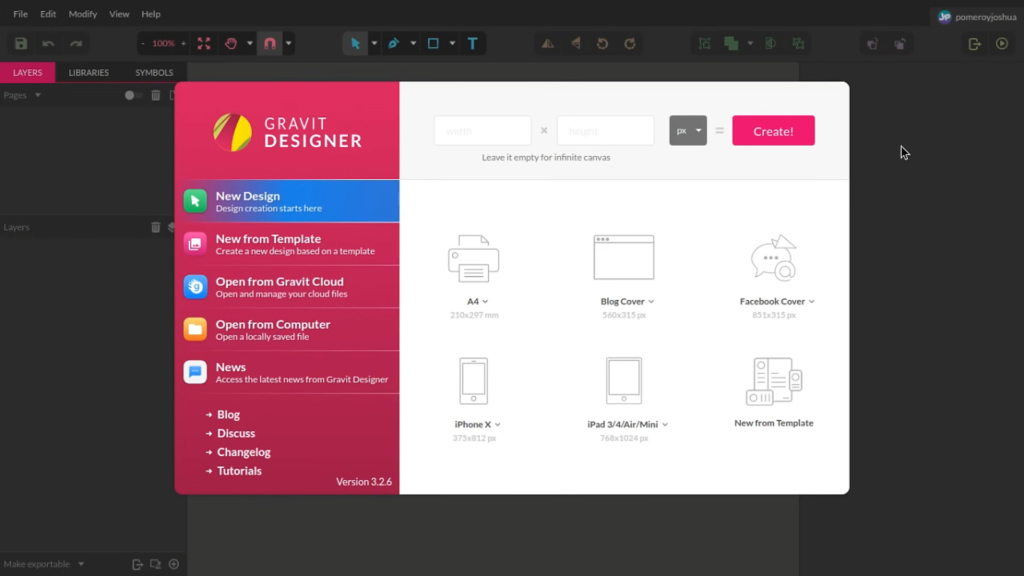
Understanding Gravit Designer: A Brief Overview
Gravit Designer is a vector-based graphic design software that’s available both as a web application and a downloadable desktop application (Gravit Designer Pro). It combines a range of design capabilities, including vector graphics, photo editing, and layout design, making it a versatile choice for both beginners and experienced designers.
Getting Started with Gravit Designer
Before we dive into the tips and tricks, let’s begin with the basics. If you’re new to Gravit Designer, here’s how to get started:
- Create an Account: To use the web version, sign up for a Gravit Designer account. For the desktop version, download and install the application from the official website.
- Explore the Interface: Familiarize yourself with Gravit Designer’s interface, which consists of a canvas, tools panel, properties panel, and layers panel. The intuitive layout makes it easy to access the tools you need.
- Start with Basic Shapes: Begin your design journey by experimenting with basic shapes, lines, and text. Gravit Designer offers a wide range of customization options for these elements.
- Learn Keyboard Shortcuts: Speed up your workflow by learning keyboard shortcuts. Gravit Designer provides a list of keyboard shortcuts within the app, which can significantly improve your efficiency.
Mastering Gravit Designer: Tips and Tricks
Now that you’re acquainted with the basics, let’s explore some valuable tips and tricks to help you become a Gravit Designer pro.
1. Use Vector Graphics for Scalability
Gravit Designer is a vector-based software, which means that your designs are created using mathematical equations. This allows your graphics to be infinitely scalable without losing quality. Whether you’re designing logos, icons, or illustrations, always work with vectors for the best results.
2. Explore Libraries and Templates
Gravit Designer offers a library of pre-made shapes, icons, and templates. These resources can save you time and provide inspiration for your projects. Don’t hesitate to customize and incorporate them into your designs.
3. Work with Multiple Artboards
Artboards are like pages within a document, and Gravit Designer allows you to work with multiple artboards in a single file. This feature is handy for creating multi-page documents, web designs for various screen sizes, or variations of a design within one file.
4. Master the Pen Tool
The Pen tool is a fundamental tool in vector-based design. Invest time in mastering it because it allows you to create custom shapes and paths. Practice creating curves, corners, and complex shapes to enhance your design capabilities.
5. Create Custom Color Palettes
Consistency in color is crucial in design. Gravit Designer lets you create custom color palettes, which you can save and reuse across projects. This ensures that your designs maintain a cohesive color scheme.
6. Use Layers Effectively
Layers help you organize your design elements. Naming and grouping layers will keep your projects neat and manageable, especially when working on complex designs. You can also use layers for non-destructive editing by applying effects to individual layers.
7. Work with Masks
Masks are powerful tools for controlling the visibility of elements. You can use them to create complex shapes, reveal specific parts of an image, or apply gradients to objects. Experiment with masks to achieve unique design effects.
8. Embrace Collaboration
Gravit Designer supports collaboration, allowing multiple users to work on the same design project simultaneously. This feature is valuable for team projects, feedback gathering, or design workshops.
9. Export for Multiple Formats
Gravit Designer enables you to export your designs in various formats, including SVG, PNG, JPG, PDF, and more. Before exporting, consider the intended use of the design to choose the appropriate format and resolution.
10. Stay Updated and Seek Inspiration
Graphic design is a constantly evolving field. Stay updated with the latest design trends, techniques, and Gravit Designer updates. Follow design communities, blogs, and social media channels to seek inspiration and stay connected with the design community.
Gravit Designer is a versatile and accessible graphic design tool that empowers designers to bring their creative visions to life. Whether you’re a novice or an experienced designer, these tips and tricks will help you unlock the full potential of Gravit Designer. Remember that practice, experimentation, and a passion for design are essential ingredients for mastering this powerful software. So, dive in, explore, and let your creativity soar with Gravit Designer!